


Thank you! Your submission has been received!
Oops! Something went wrong while submitting the form.
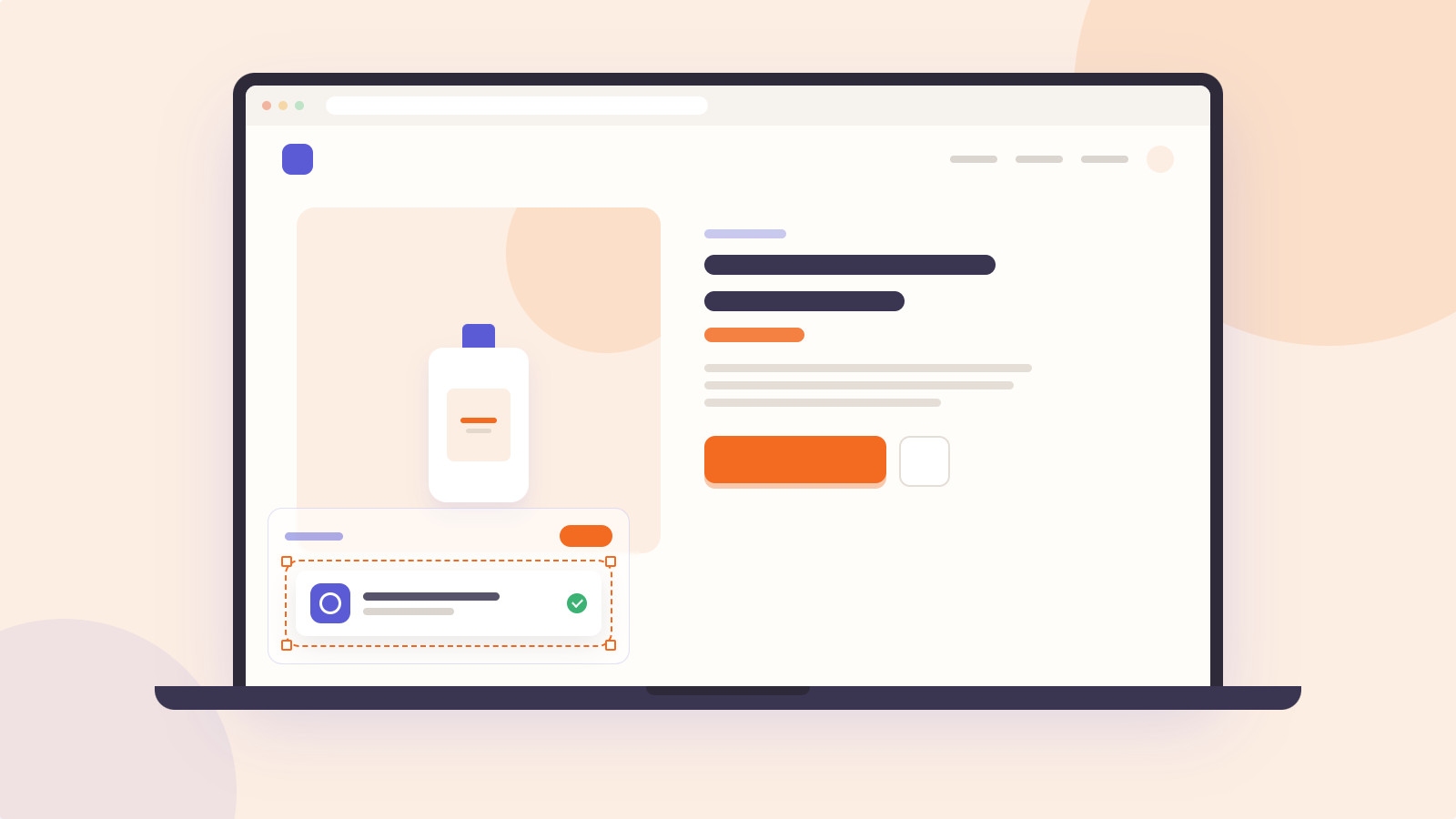



Every time you set up a social proof notification, there's a small, nagging question: is this going to look right on my actual store?
Most of the time you find out the hard way. You switch the notification on, open your live product page, and there it is, sitting on top of your buy button or clashing with your theme. Your customers saw it before you did.
That feedback loop is backwards. You should not be testing on the people you are trying to convert. With Notifications Preview, you don't have to. You can now see exactly how any Fomo notification looks on your real store, inside the Shopify Theme Editor, before a single visitor does.
For years, the only way to "preview" a social proof notification on your own storefront was a workaround that nobody enjoyed. It went something like this: create a display rule that forces the notification onto a low-traffic page like your terms page, open that page while logged in, squint at it, then remember to delete the rule afterward so real visitors don't get a notification in the wrong place.
It works, sort of, but it has three real problems. It doesn't show the notification where it actually matters, on your product and collection pages. It makes you edit your live display rules just to take a look, which is risky. And it leaves cleanup to you, so a forgotten test rule can quietly misfire for weeks.
For a growing store, that is not a small annoyance. A notification that overlaps your cart drawer or covers a "buy now" button is a conversion problem, and finding it after launch means you have already lost sales you will never see in a report.
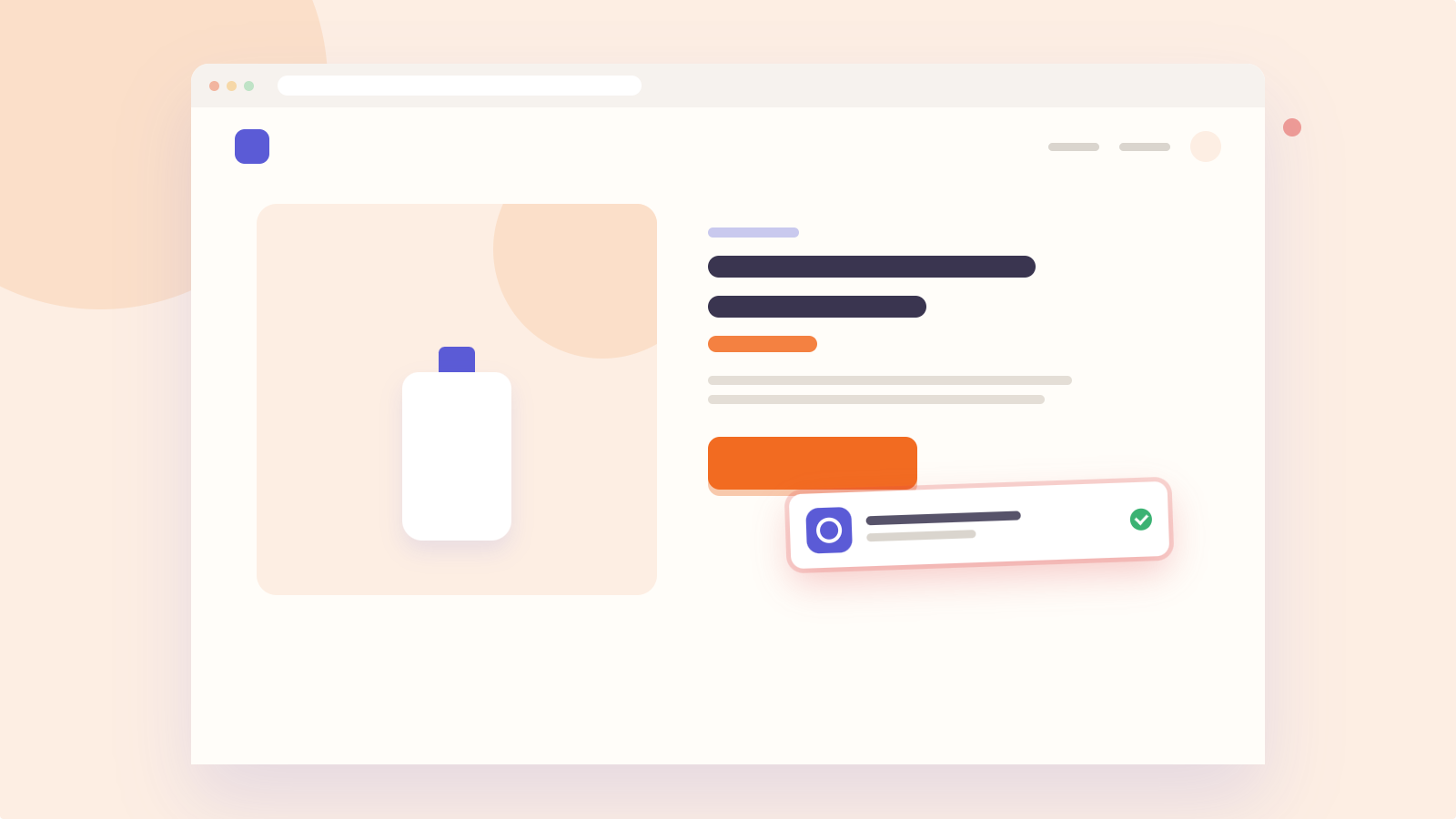
Notifications Preview lets you render any configured Fomo notification inside the Shopify Theme Editor, on your real theme, over your real pages. A preview panel lists the notifications that are set to appear on the page you are viewing. You pick one, and it pops up exactly where a shopper would see it, in its real position and style.
Two things make this safe and honest. First, the preview is visible only to you inside the editor. It never reaches a real visitor on your live storefront. Second, the preview is representative of your current Fomo notification theme, display, and timing settings, so what you see is what will actually go live.
Because the goal is to let you check everything on demand, the preview intentionally ignores display rules, frequency caps, and event-data requirements. That means you can pull up any notification type and see it, even ones that would only trigger under specific conditions in the wild.
Previewing in context lets you spot the things that only show up on a real page:
Social proof only works when it feels like a natural part of your store. A notification that looks cheap or misplaced does the opposite of its job: instead of building trust, it tells shoppers the site was thrown together. The whole point of social proof is to borrow the credibility of real customer activity, and presentation is part of that credibility.
Previewing on your real pages closes the gap between "configured" and "looks right." You tune placement and styling once, before launch, instead of discovering problems through a support ticket or a dip in conversions. It is a small step that separates social proof that looks deliberate from social proof that looks like an afterthought, the same attention to detail that makes tactics like creating urgency feel authentic rather than pushy.
Here is the technical reason this is possible, and why it is harder than it sounds. Fomo runs natively inside the Shopify Theme Editor as an app embed. That means Fomo renders in the same environment your theme does, so the preview happens right on top of your real pages.
Anything that loads only through a generic script tag can't do that. It can show you a preview in a separate panel or on a mockup, away from your actual store, which is exactly the out-of-context preview that leads to surprises at launch. Running inside the Theme Editor is what lets the preview reflect your real theme, not an approximation of it.
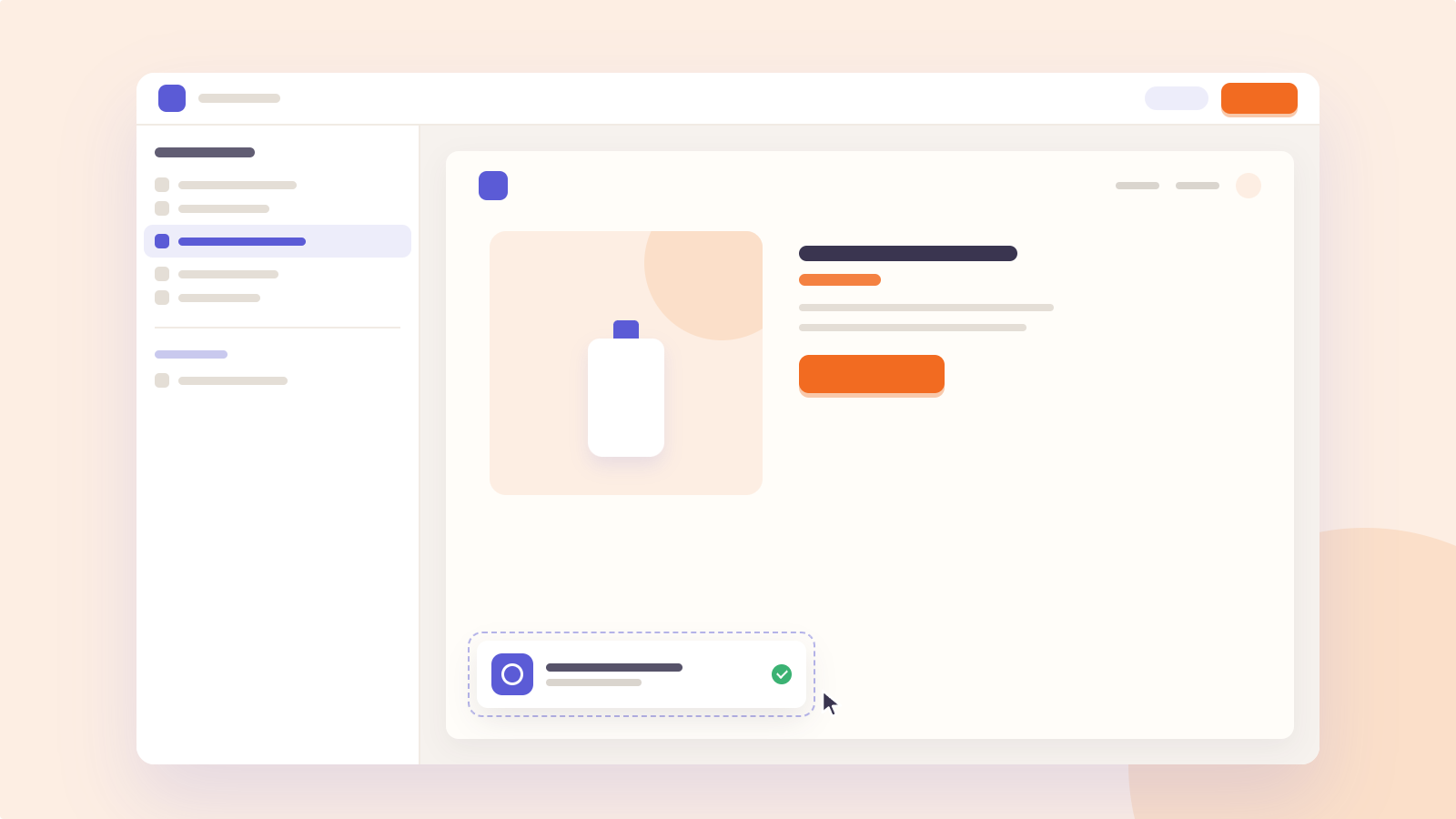
If you are a CRO or you set up campaigns for other people's stores, preview is how you QA copy and styling before launch without asking the store owner to publish something unseen. If you run your own Shopify store, it is how you confirm the widget looks right on your actual product page before you turn it on for everyone. And if this is your first social proof app, it removes the guesswork from setup, so your first impression of Fomo on your storefront is the one you intended. Take the product tour to see how it fits together.
Notifications Preview is available on paid Shopify plans. Shopify comes first for this release, with more platforms on the way.
Preview is one piece of a larger idea at Fomo: social proof should be verified, previewed, and measured, not faked and hoped for. Every notification can carry the Guaranteed by Fomo badge, backed by US Patent 10,991,014, so shoppers can confirm it is real. And once it is live, per-notification ROI analytics show you which notifications actually drive revenue.
Fomo connects with 100+ integrations across the tools you already use.
Install Fomo now and start testing your notifications in the Theme Editor today →
Yes. Notifications Preview renders any configured notification inside the Shopify Theme Editor, on your real theme, and it is visible only to you. Nothing appears to real visitors until you publish.
No. The preview exists only inside the Theme Editor for you. It never reaches live visitors, and it cleans itself up when you leave the editor.
Any notification configured to appear on the page you are viewing. Preview ignores display rules, frequency caps, and event-data requirements so you can pull up any notification type on demand.
No. Fomo installs as a Shopify app embed, so you turn it on in the Theme Editor and preview from a panel, no code required.
Notifications Preview is available on paid Shopify plans. Shopify is supported first, with more platforms coming.


Keep reading, and you’ll learn several social proof strategies you can use to make your potential customers more likely to hit the “Buy” button.
%201.svg)
Don't settle for mediocrity! Experience the power of Fomo and witness a significant boost in trust and conversions on your website - just like 3500+ other businesses!
Try fomo for free now%201.svg)
Don't settle for mediocrity! Experience the power of Fomo and witness a significant boost in trust and conversions on your website - just like 3500+ other businesses!
Try fomo for free now
Explore different types of social proof you can show on your website to drive more conversion. See examples of brands using social proof.
Don't settle for mediocrity! Experience the power of Fomo and witness a significant boost in trust and conversions on your website - just like 3500+ other businesses!
Try fomo for free now

Boost your sales and conversion with Social Proof
Try Fomo for free*No credit card required